¶ Media Roll Bracket (Flange Disc)
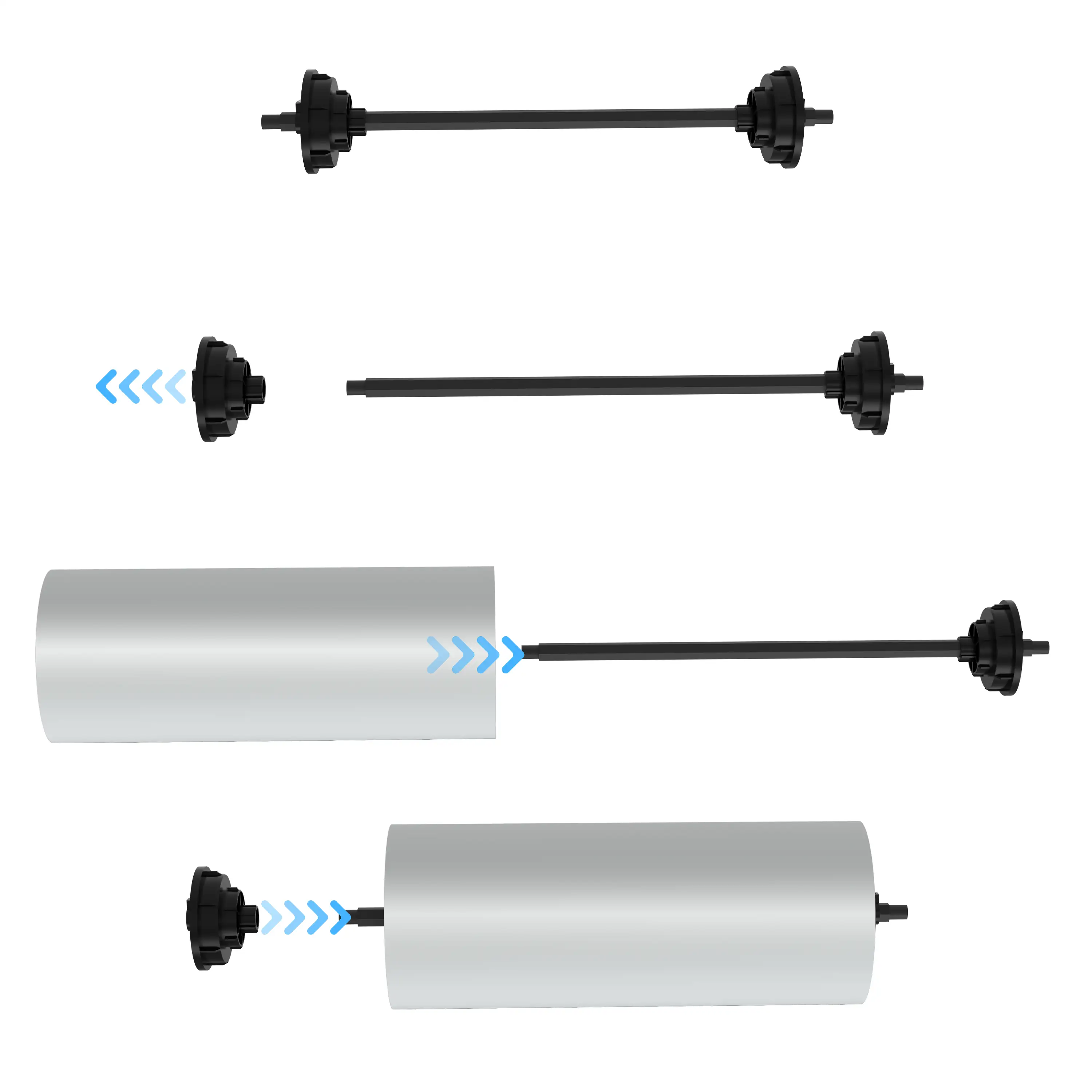
Fault Symptoms: Media skews left/right, wrinkled media, unwinding stuttering
Solutions:
- Check whether both‑side flange discs clamp both ends of the media roll securely.
- Ensure the media roll is centered and its shaft is coaxial with the support rod.
- Clean media scraps and dust from the support rod and flange locking positions.
- Replace the flange discs directly if they are worn or slipping.
¶ Printing Platform
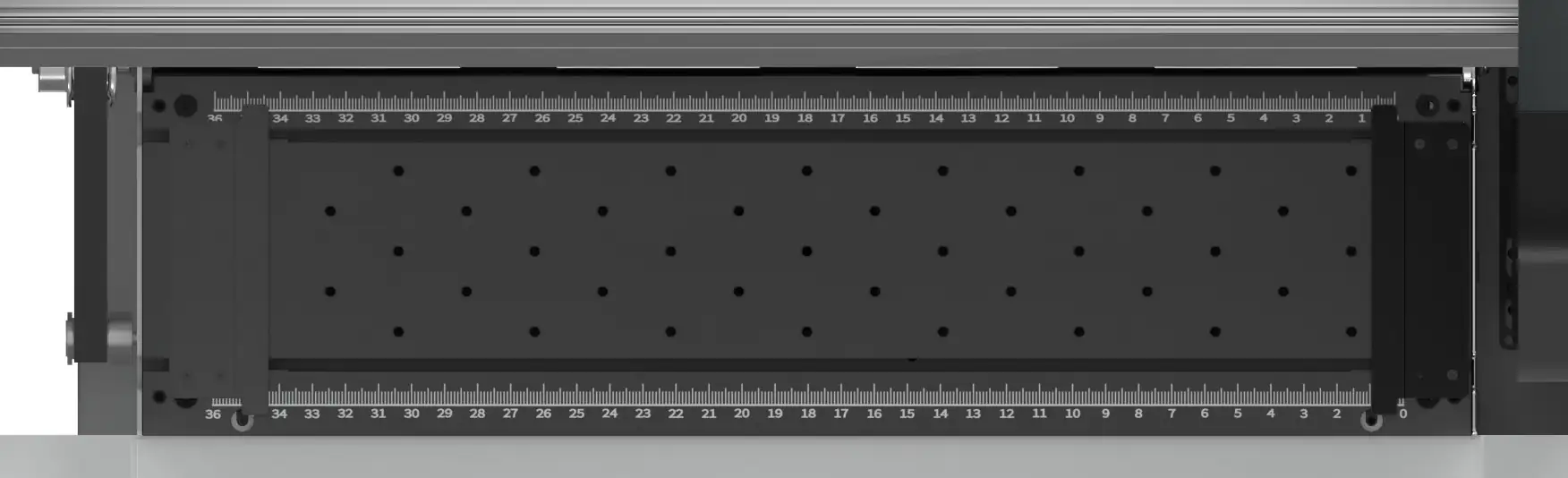
Fault Symptoms: Poor media suction, media warping, media lifting, printing ghosting
Solutions:
- Inspect platform suction holes and clear holes clogged by ink stains and media debris.
- Check for dents or damage on the platform surface; surface damage will weaken vacuum adsorption.
- Confirm the DTF film fully covers the suction area and does not exceed the valid adsorption range.
¶ Media Pressure Clip
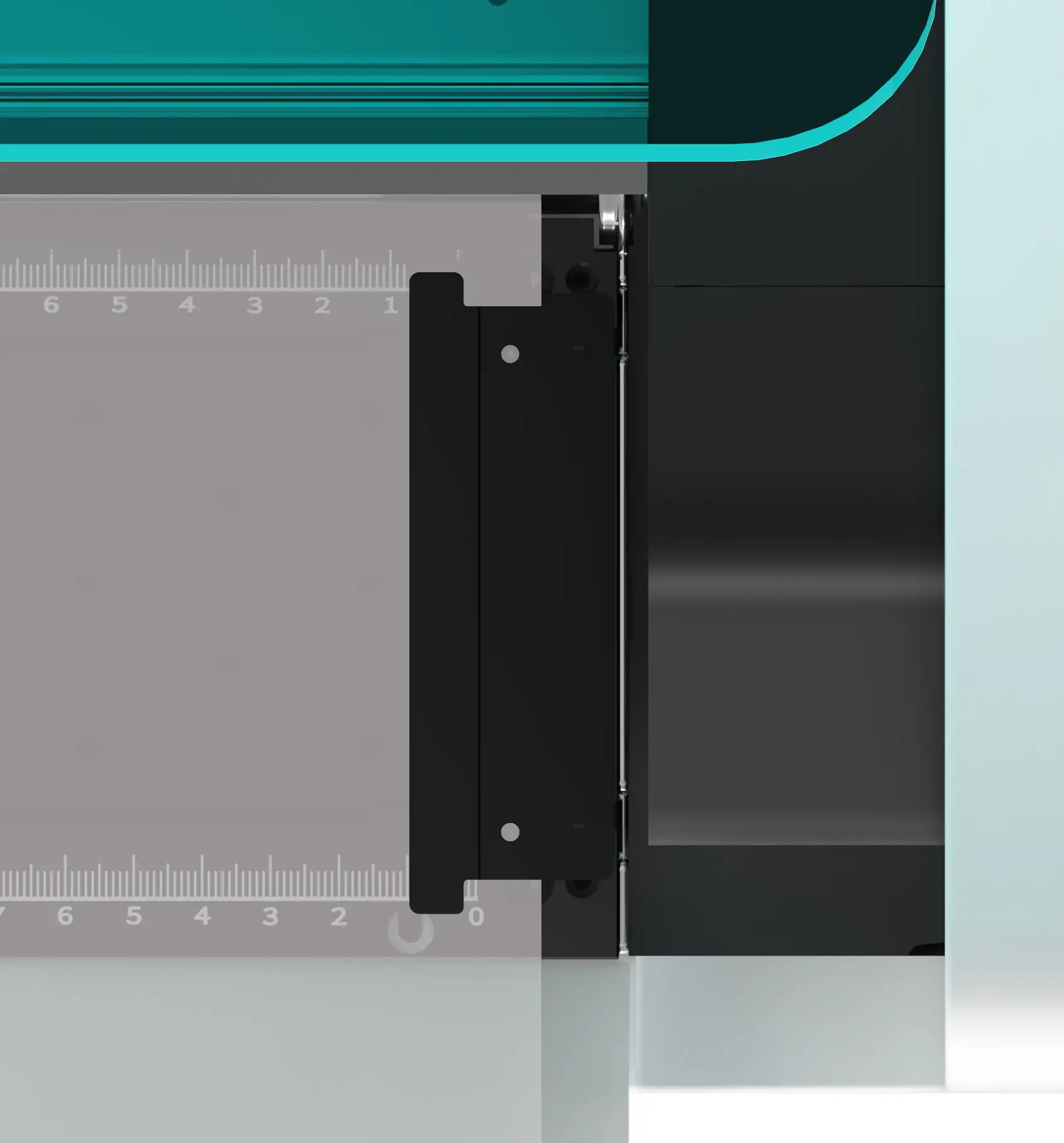
Fault Symptoms: Media warping during feeding, print‑head scraping, media wrinkling
Solutions:
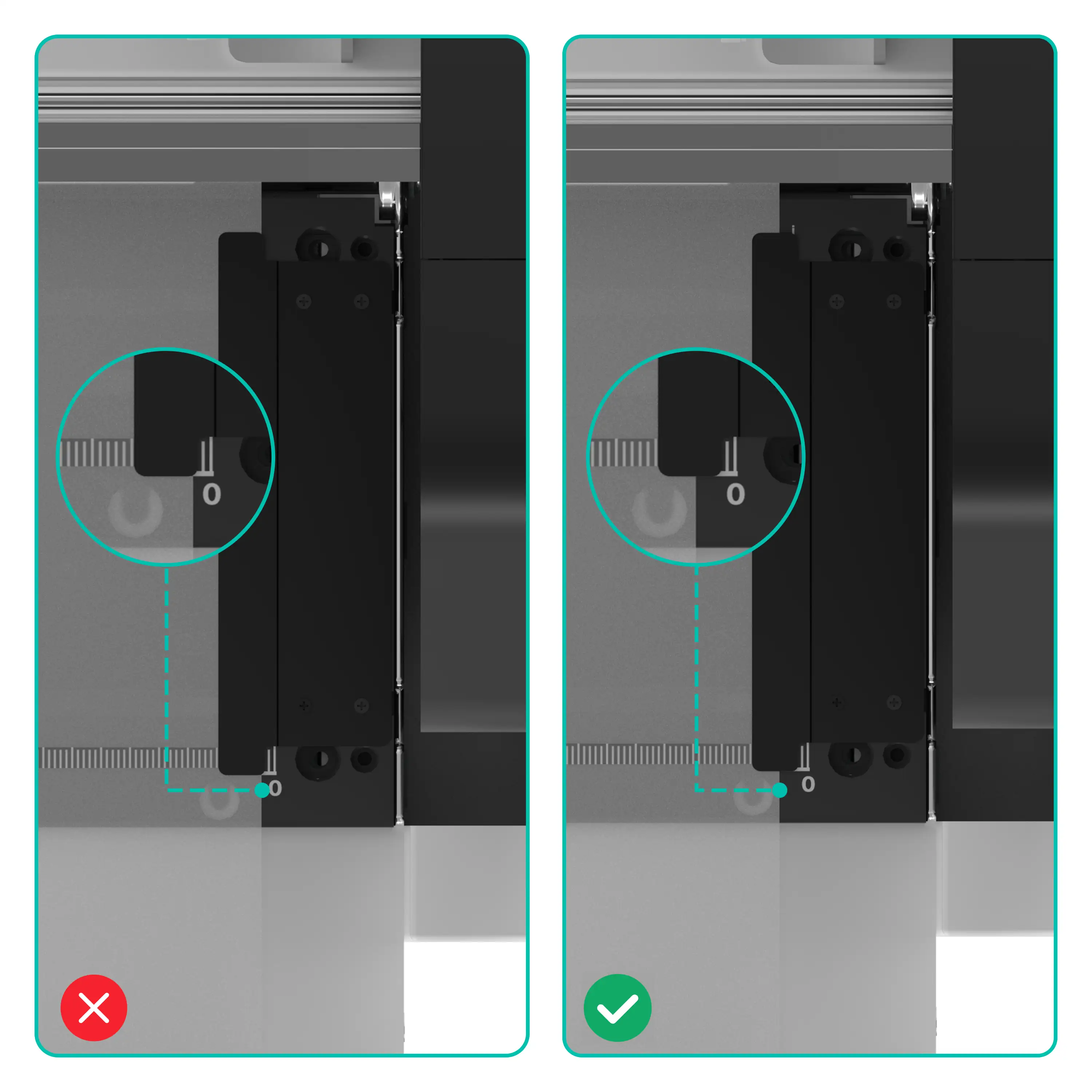
- Install pressure clips for 11.8‑inch media; remove pressure clips completely for 15‑inch media.
- Let the clips rest lightly on media. Do not squeeze the media tightly.
- Clean accumulated ink residue and media scraps on pressure clips.
- Replace pressure clips directly if deformed or cracked.
¶ Print Carriage
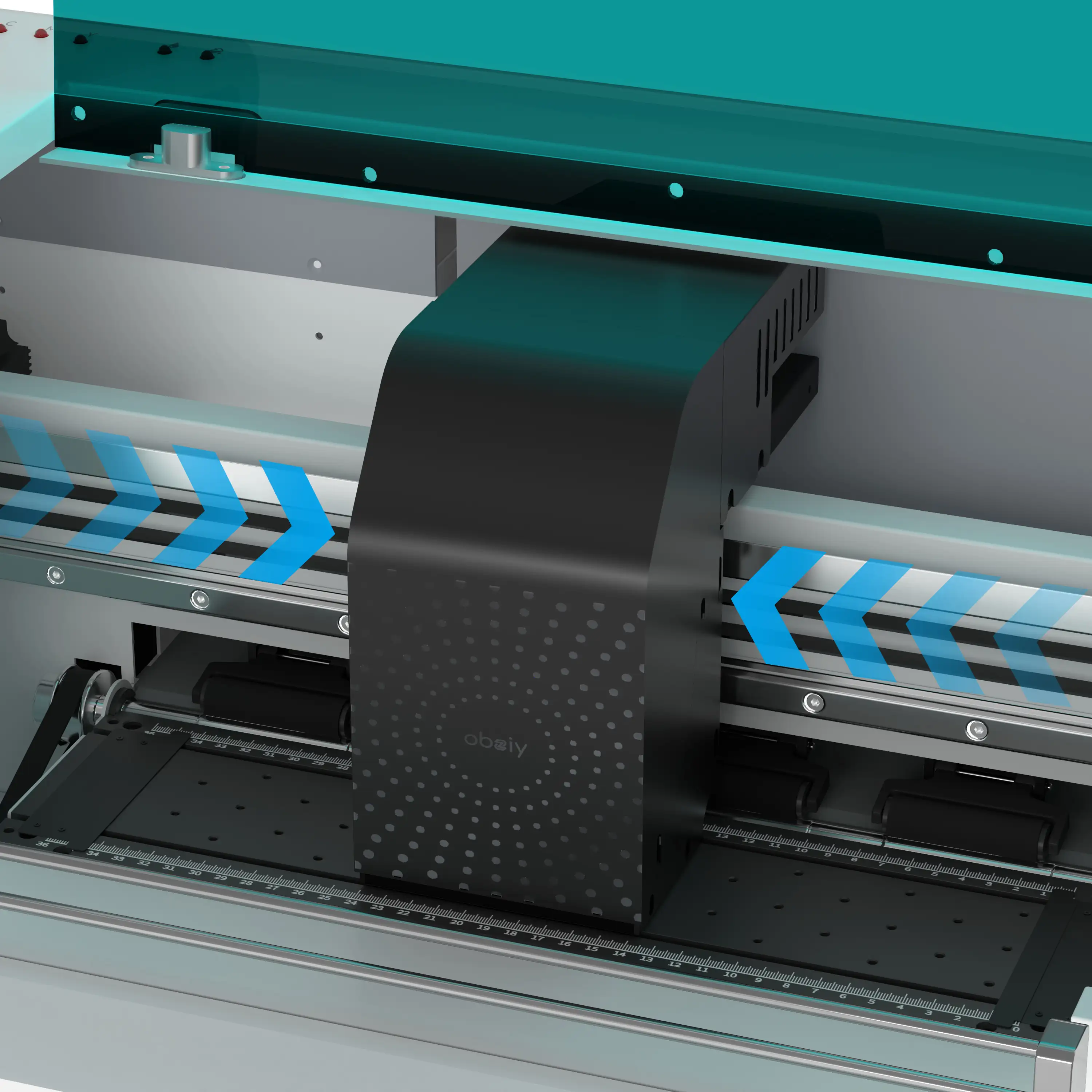
Fault Symptoms: Carriage fails to move, collision abnormal noise, printing misalignment, carriage rushes left upon power‑on
Solutions:
- Do not manually push or pull the print carriage while power is on.
- Observe whether the carriage returns normally to the capping‑station home position at startup.
- Check guide rails for foreign objects or ink clogs blocking carriage movement.
- Power off immediately if collision noise occurs. Check whether lifted media interferes with the carriage.
- If the carriage rushes left on startup: Check whether the encoder strip is dislodged, dirty or damaged.
Note: Place the moisturizing‑liquid bottle properly. Misplaced bottles may cause print‑head impact and jitter.
¶ Capping Station
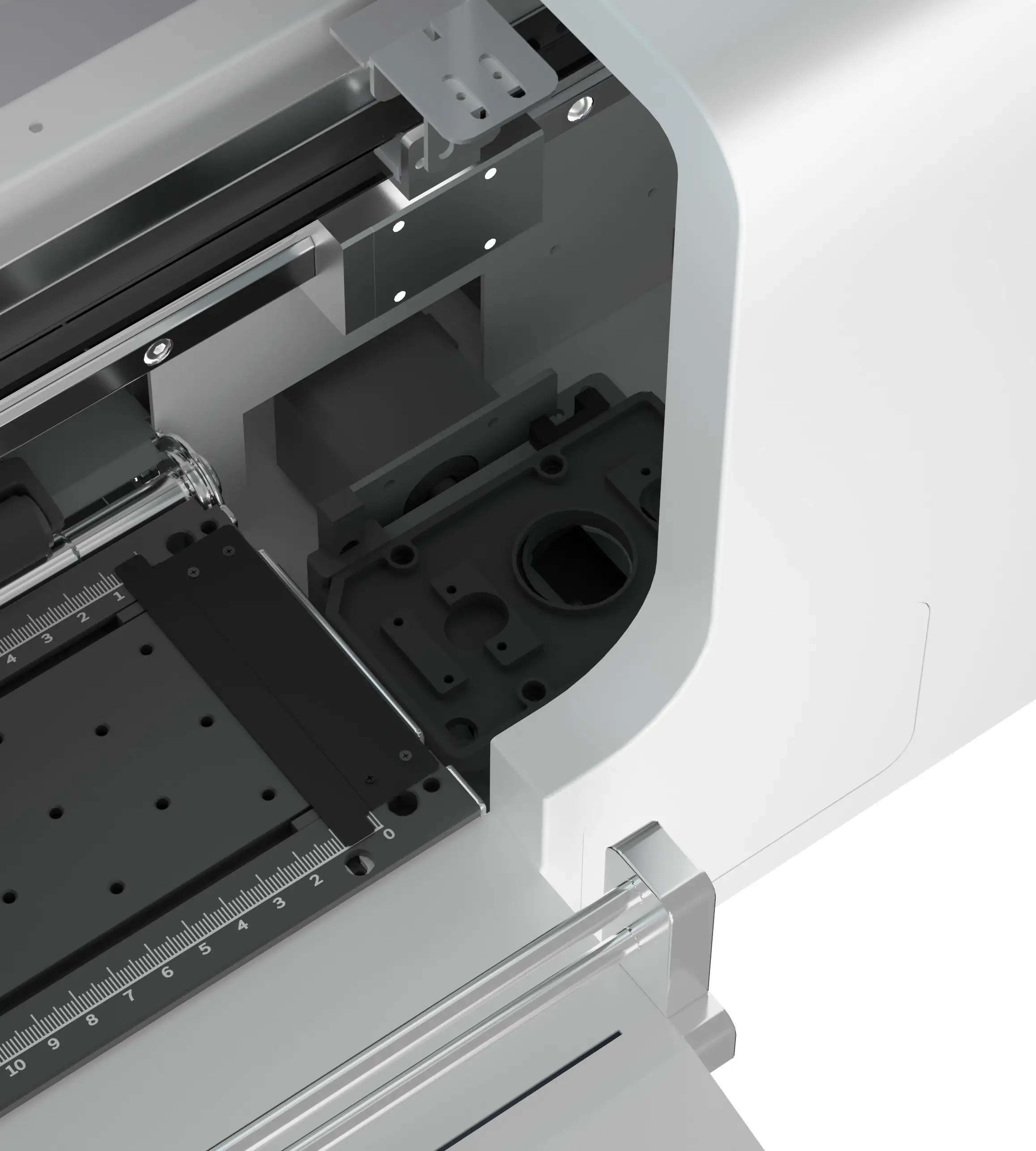
Fault Symptoms: Frequent print‑head clogging, no ink output after cleaning, ink splashing, broken print lines
Solutions:
- Verify that the carriage returns to the capping‑station in standby mode and the capping cap fits tightly against the print head.
- Clean ink residue and deposits on the capping cap and wiper blade.
- Check whether bottom ink tubes are disconnected and waste ink can flow normally into the waste‑ink tank.
- Replace rubber parts (capping cap, wiper blade) promptly when aged or damaged.
¶ Encoder Strip
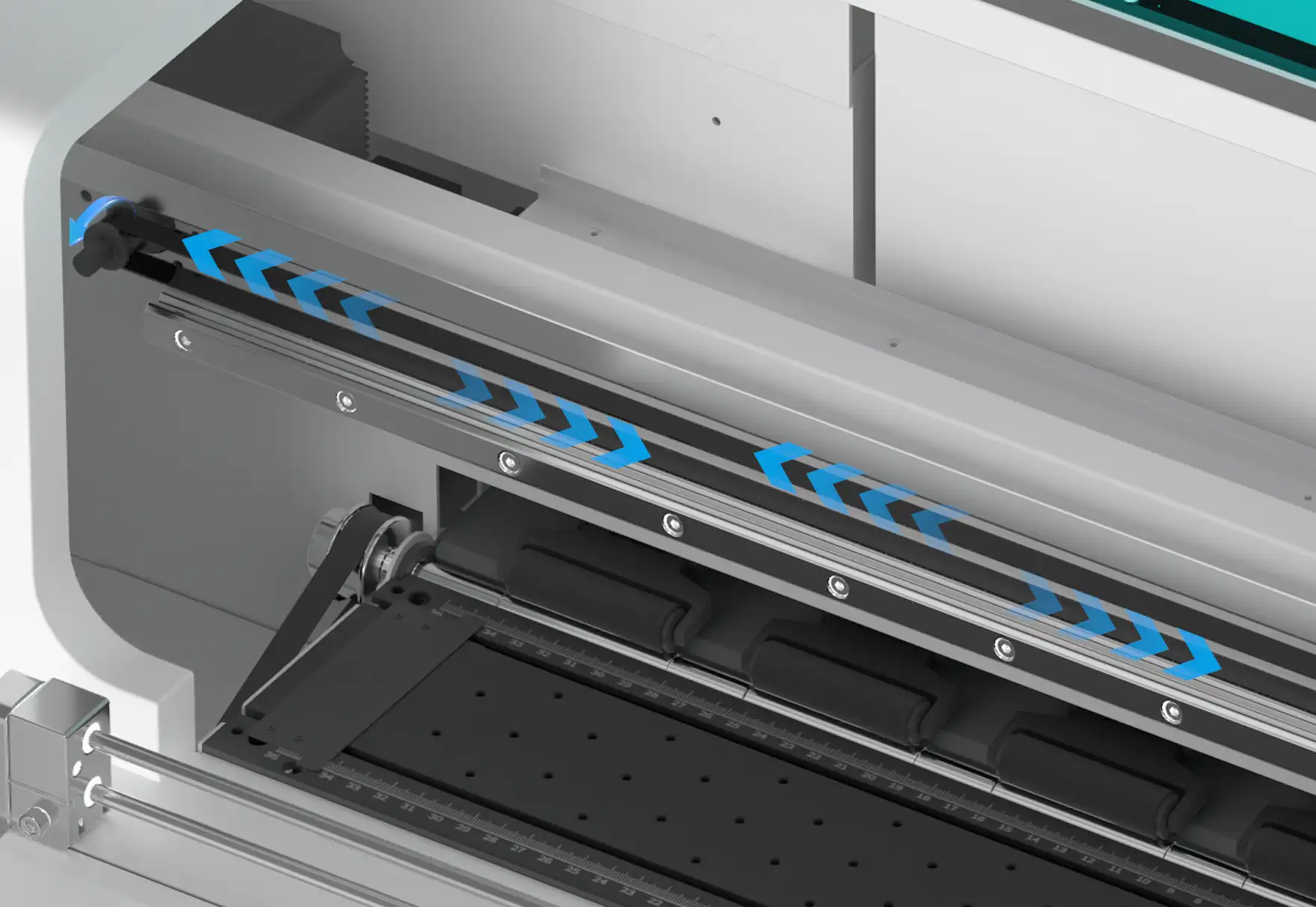
Fault Symptoms: Printing ghosting, color‑registration misalignment, carriage jitter, encoder‑strip error, touch‑screen unresponsive
Solutions:
- Do not touch the encoder strip with hands. Never apply lubricating grease onto the encoder strip. Grease is only for metal guide‑rail maintenance.
- Gently wipe the encoder strip with a lint‑free cloth. Alcohol or solvents are strictly forbidden.
- Check for ink splatters contaminating the encoder strip.
- Replace the encoder strip directly if scratched or creased (cannot be repaired).
- If the touch‑screen is unresponsive: Check whether the encoder strip has popped out of position.
¶ White‑Ink Circulation Filter
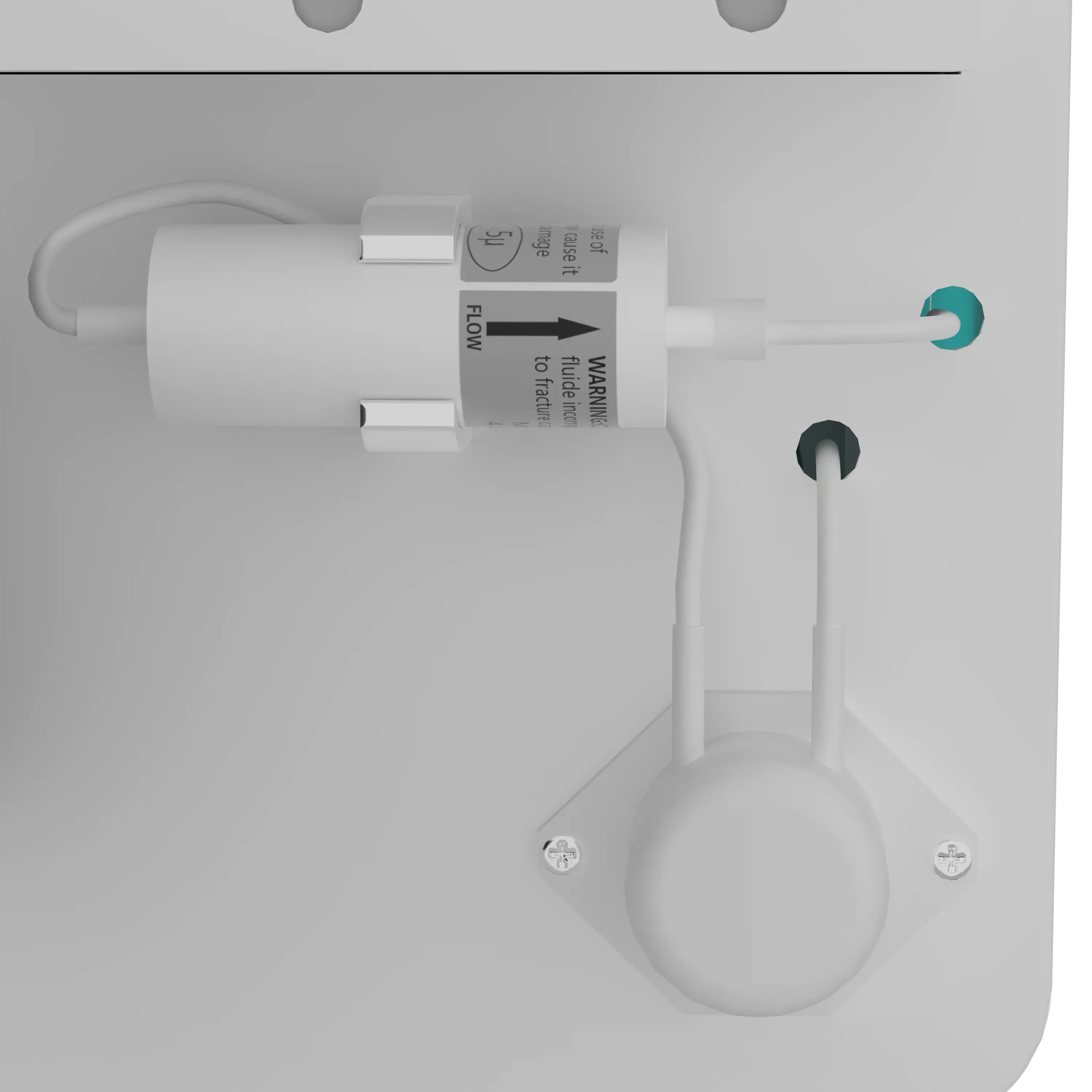
Fault Symptoms: Intermittent white‑ink output, frequent nozzle clogging, abnormal white‑ink circulation pressure
Solutions:
- Ensure filter installation matches the arrow marking; reverse installation is prohibited.
- The filter is a consumable part. Replace it directly when clogged or circulation pressure is abnormal.
- Prevent air bubbles from entering tubes during filter replacement. Exhaust air before resuming printing.
¶ Left / Right Service Door & Electric Pressure Roller
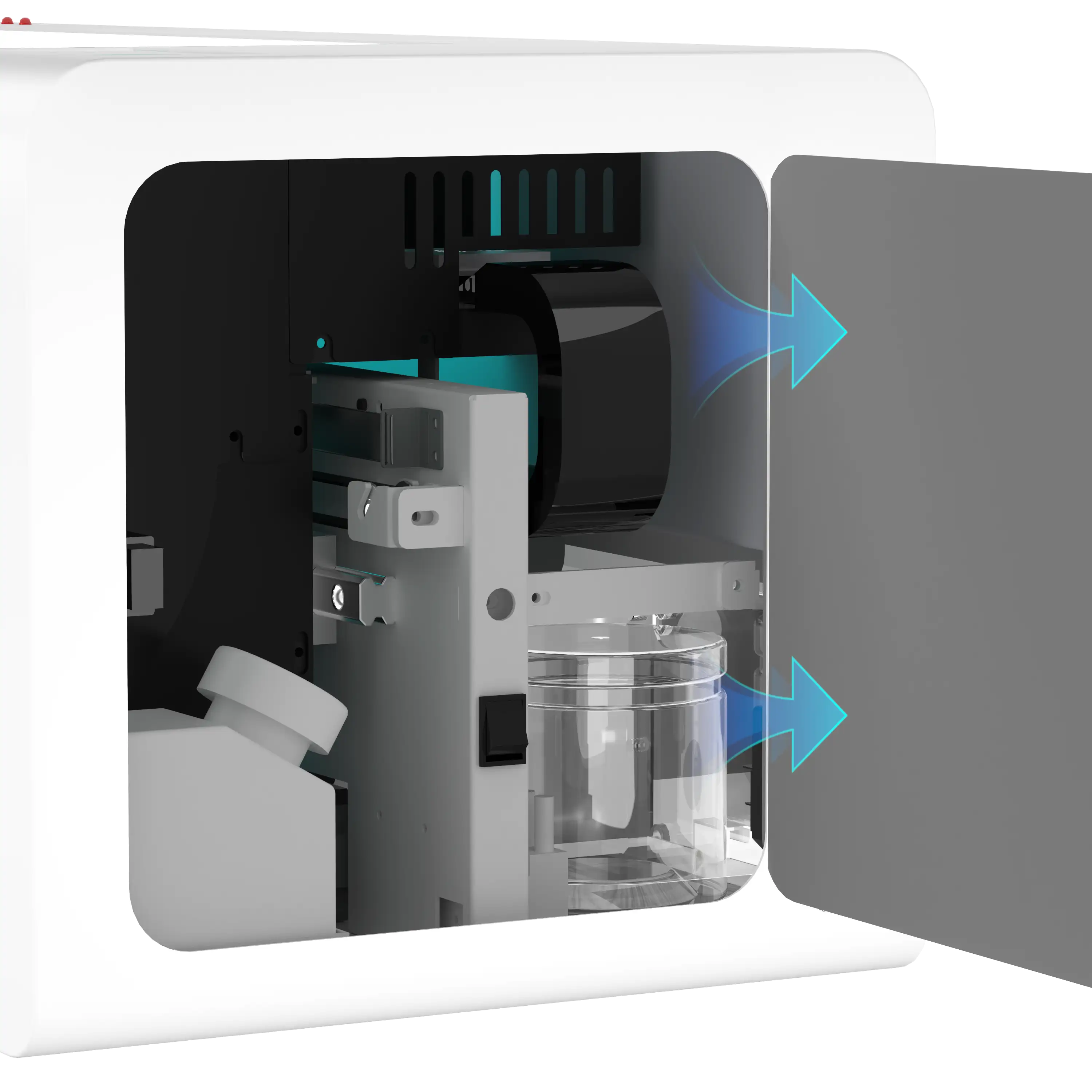
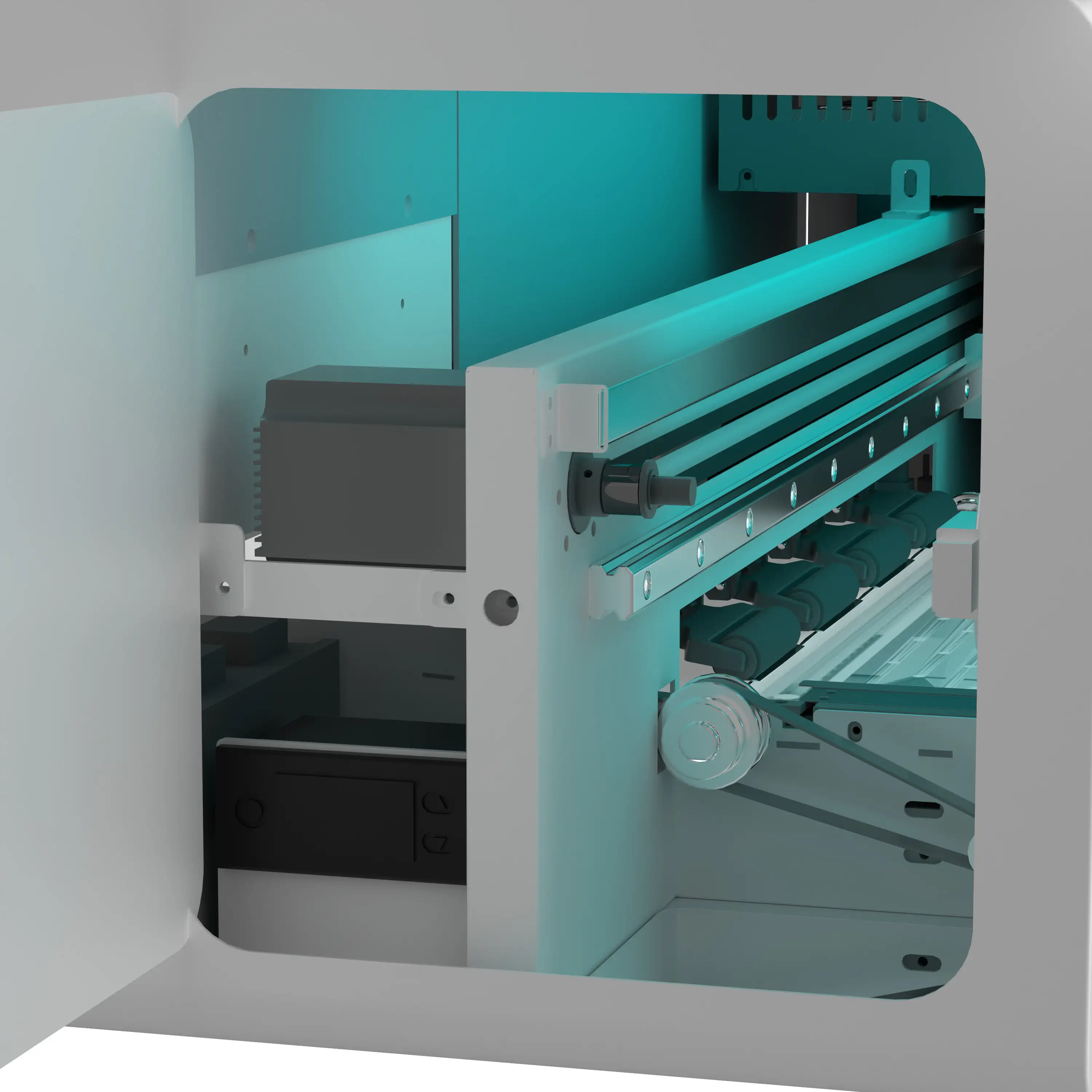
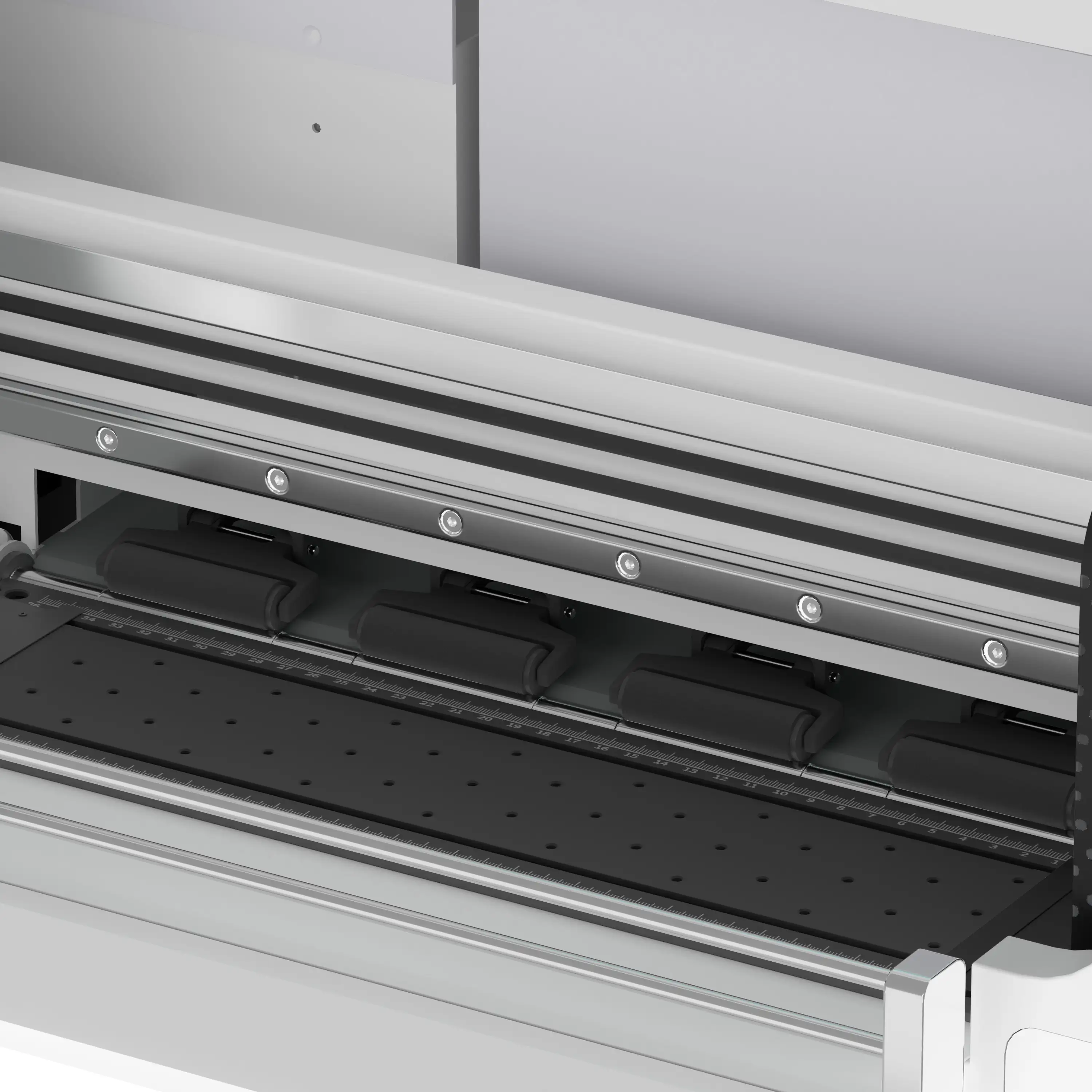
Fault Symptoms: Pressure roller fails to lift / lower, media cannot be loaded
Solutions:
- Confirm the correct position of the pressure‑roller control switch inside the left service compartment.
- Clean ink stains and media debris on the pressure‑roller rubber roller; dirty rollers cause media‑feeding slippage.
¶ Ink‑Level Indicator & Waste‑Ink Tank
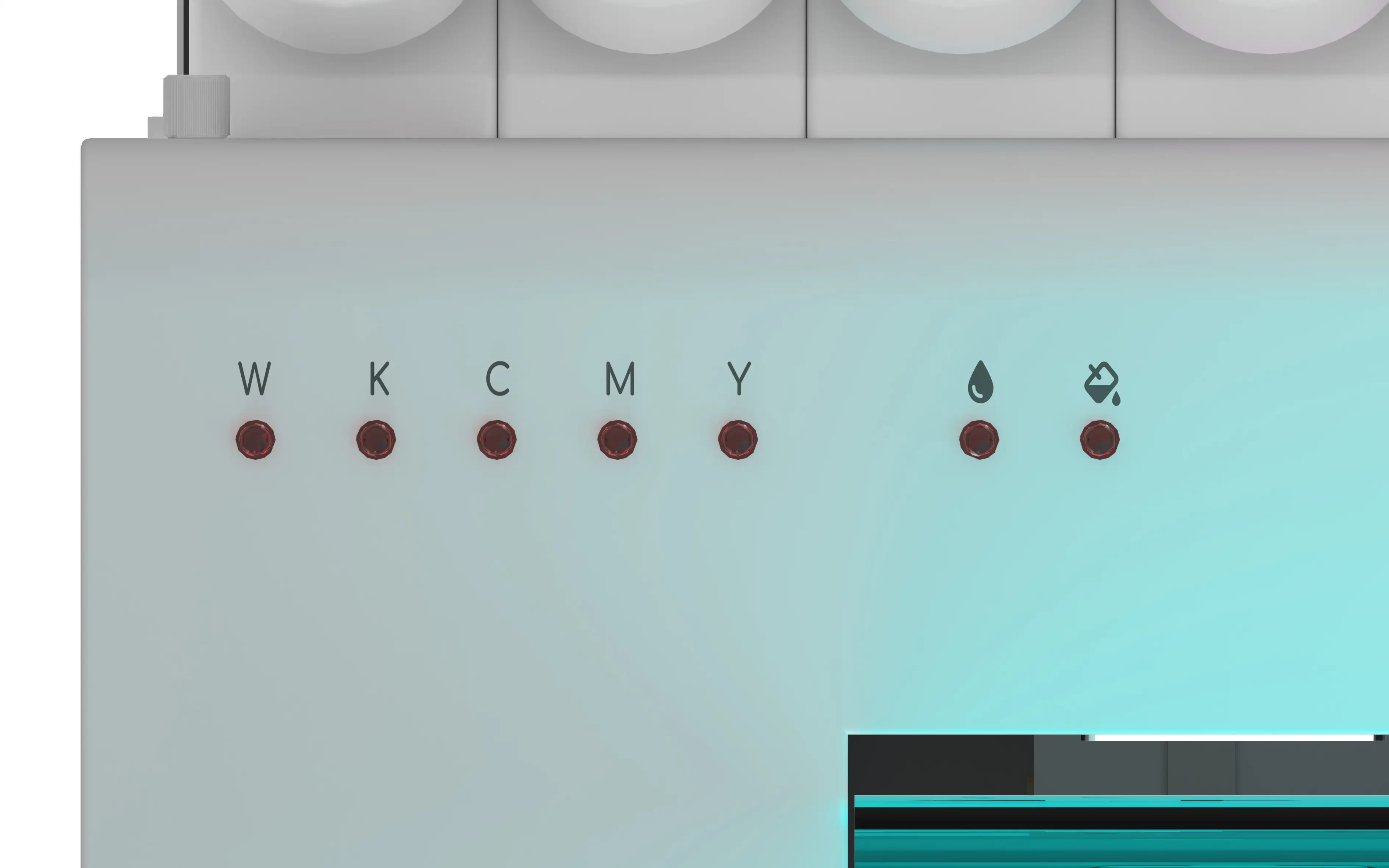
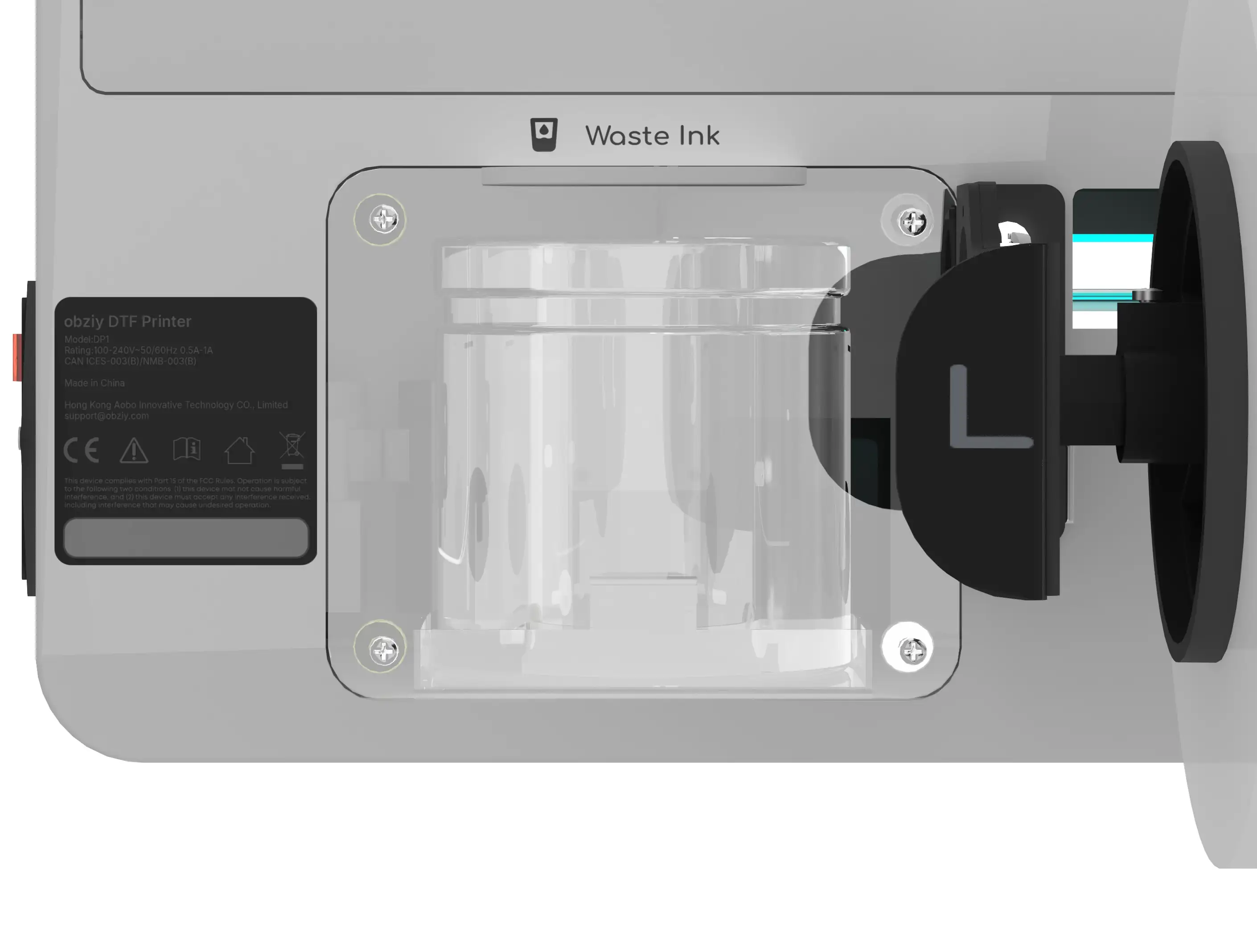
Fault Symptoms: Ink‑level alarm, waste‑ink full alarm
Solutions:
- When the ink‑level indicator lights up, refill the corresponding color ink. Shake white‑ink bottles thoroughly before refilling.
- For waste‑ink full alarm: Remove the waste‑ink tank, empty waste liquid, reset and reinstall it.
- Check waste‑ink tubes for kinks or blockages to guarantee smooth waste‑ink flow.
- Clean the waste‑ink tank regularly; otherwise false alarms may occur.
¶ Outlet Heating Platform & Cutter
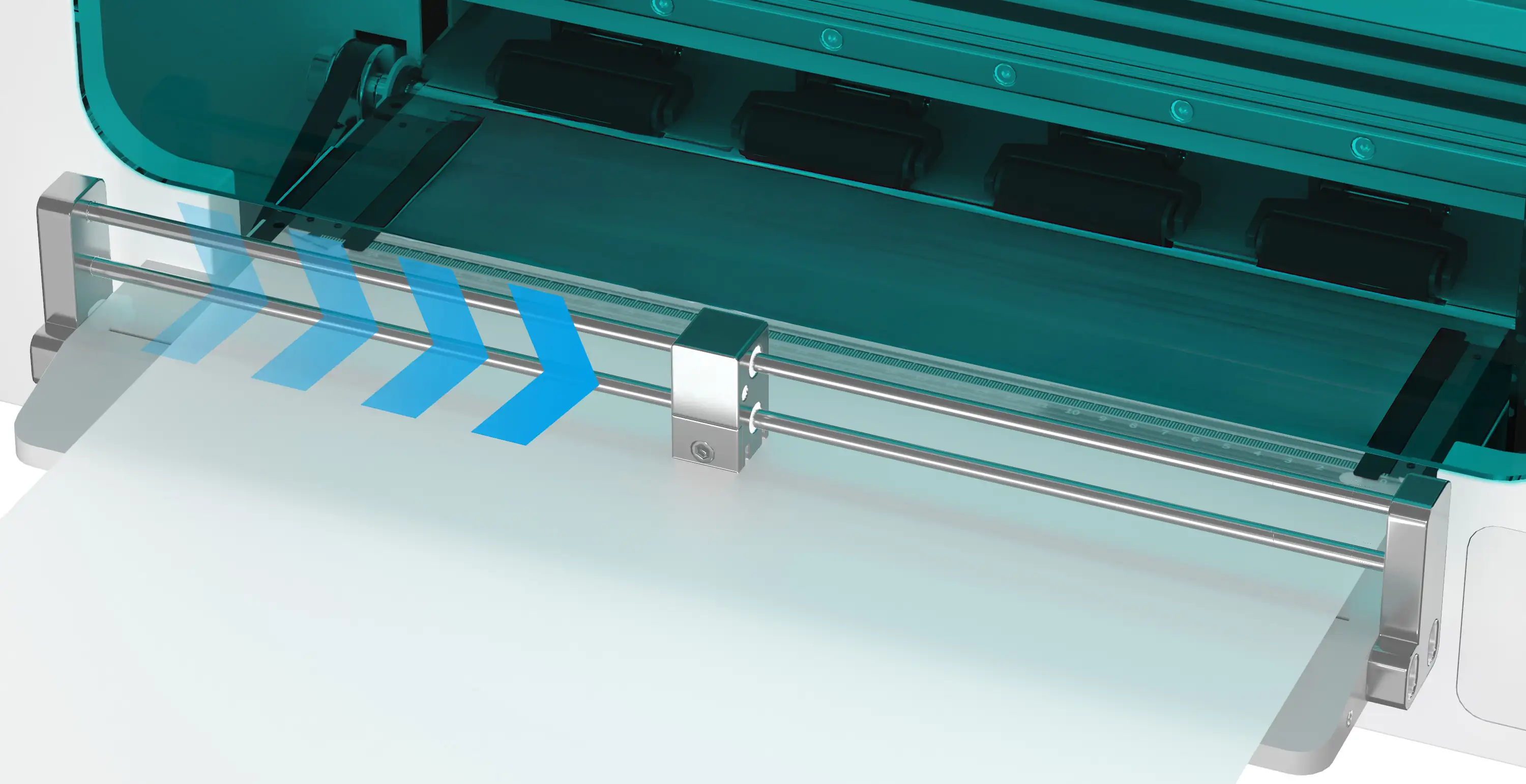
Fault Symptoms: Heating not working, cutter cannot cut through media
Solutions:
- If the heating platform does not work, verify temperature parameters on the touch‑screen and confirm normal thermostat operation.
- If the cutter fails to cut media: Check cutter position, clear media scraps in the cutter slot, and replace the blade when worn.
¶ General Notes
Power off the printer before inspecting components for troubleshooting.
If the fault persists after following above steps, take photos of the fault and affected components and contact technical support.