¶ Start Working with the Software
Before operating the printer via software, make sure all pre-operation preparation steps are completed (refer to Pre-operation Preparation section).
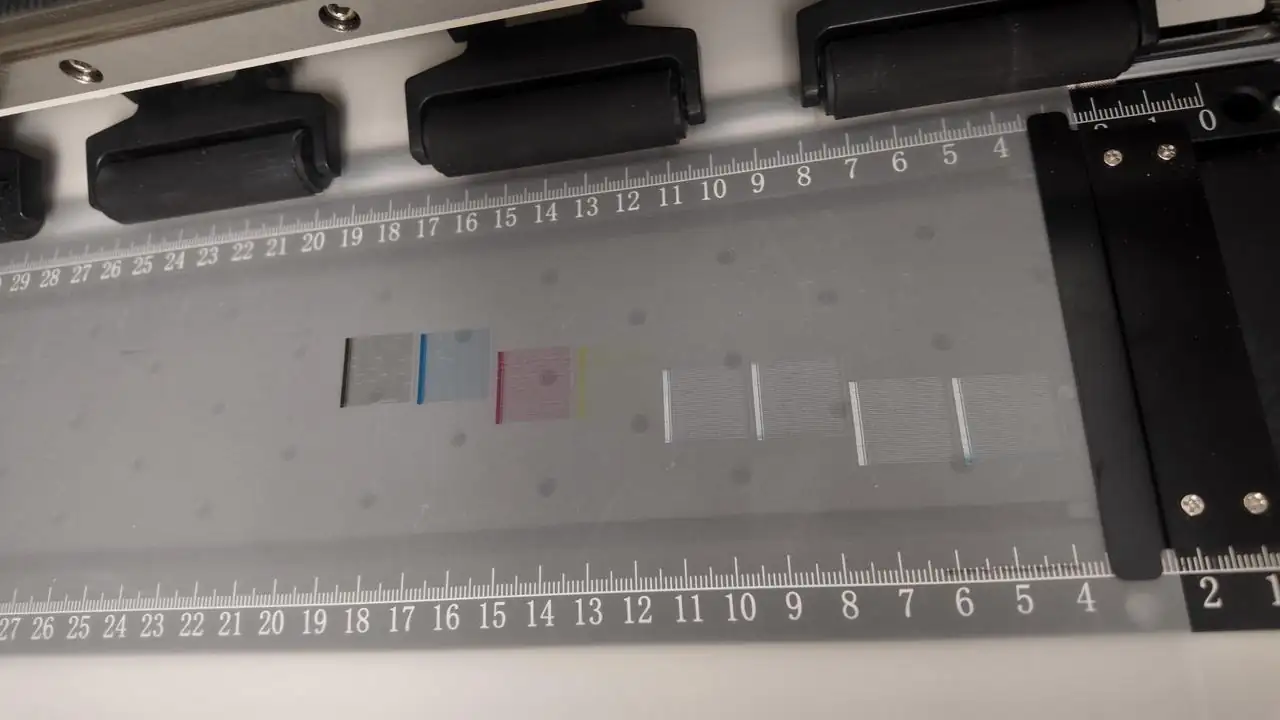
- Click Nozzle Check to print a test strip and inspect its status. Proceed to the next step only if the test strip shows no blurring, ink splatters or missing lines as shown in the reference image.
- Click the top-left icons:
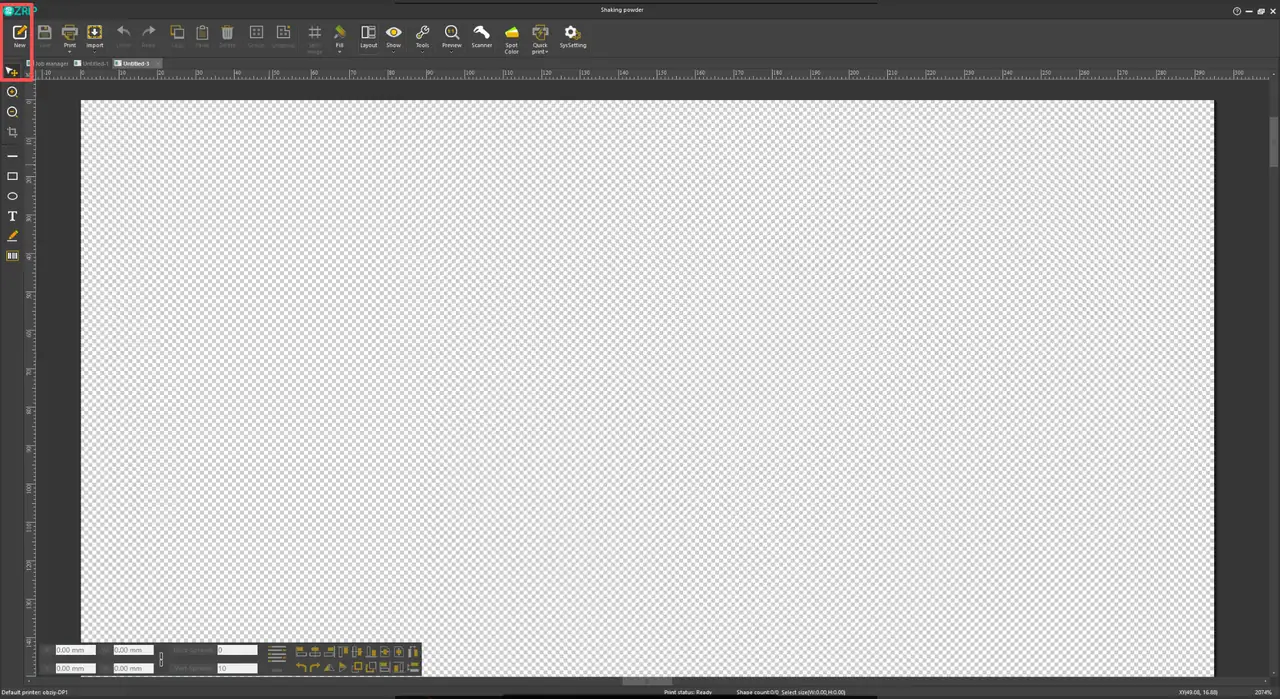
- New File: Tap New to create a blank canvas.
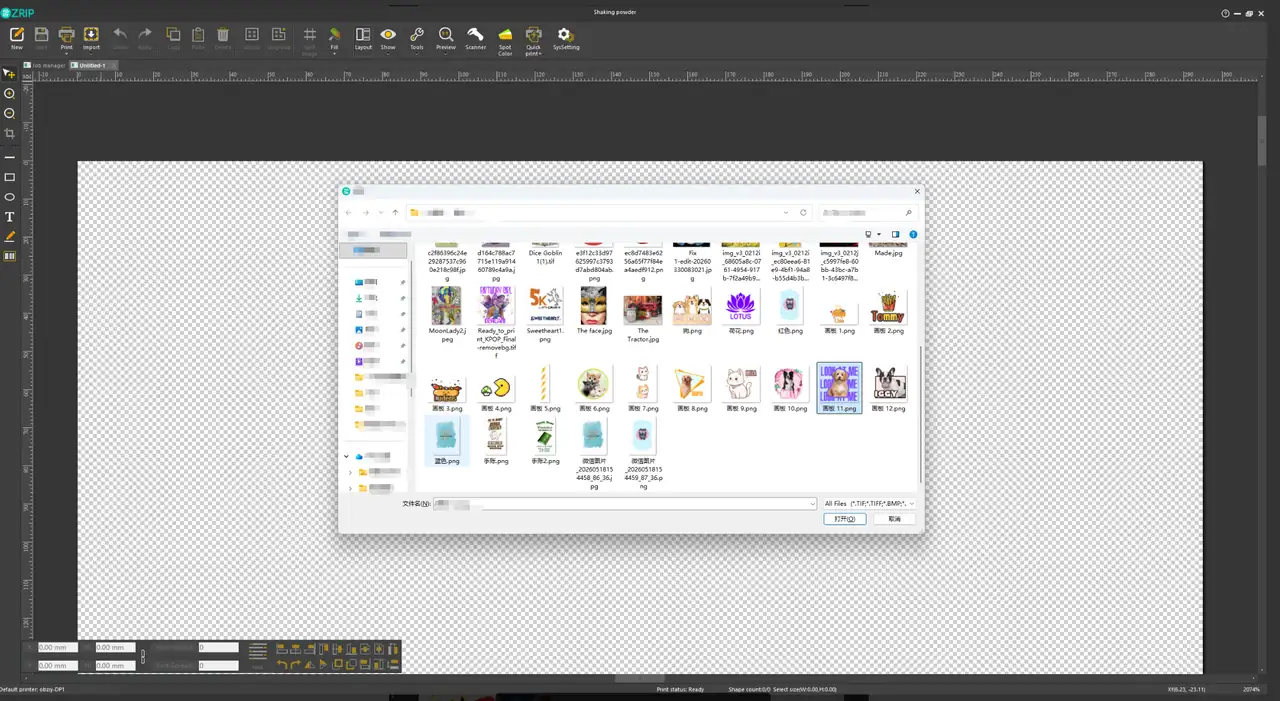
- Import Image: Tap Import to load graphic files.
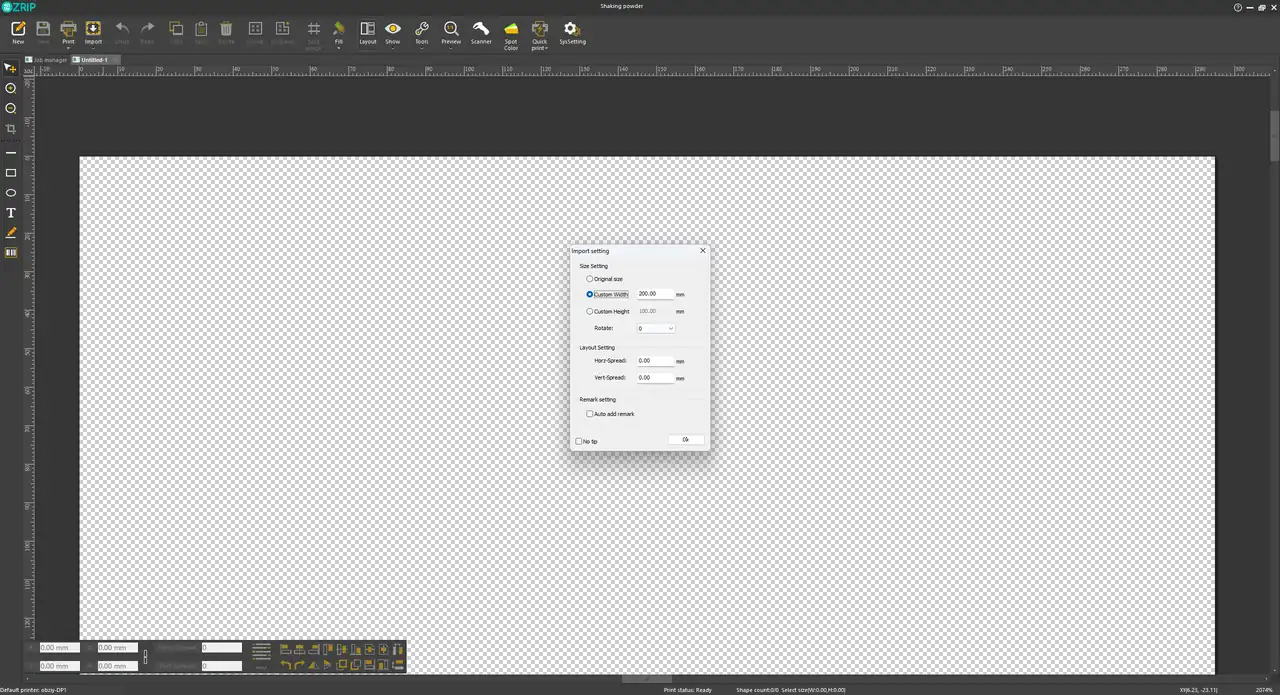
- Configure parameters for imported images. Click Custom Width to manually set graphic dimensions.
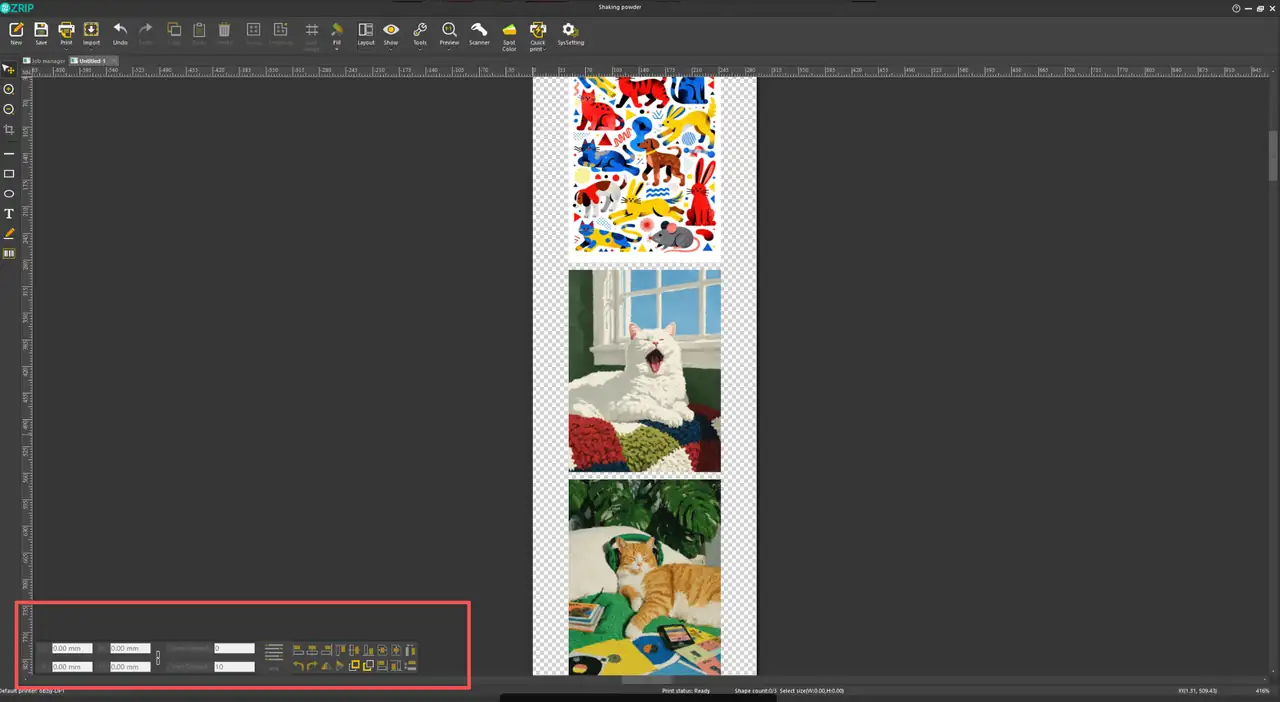
- After selecting the image, use the bottom and left-side toolbars to adjust image settings and arrange layout.
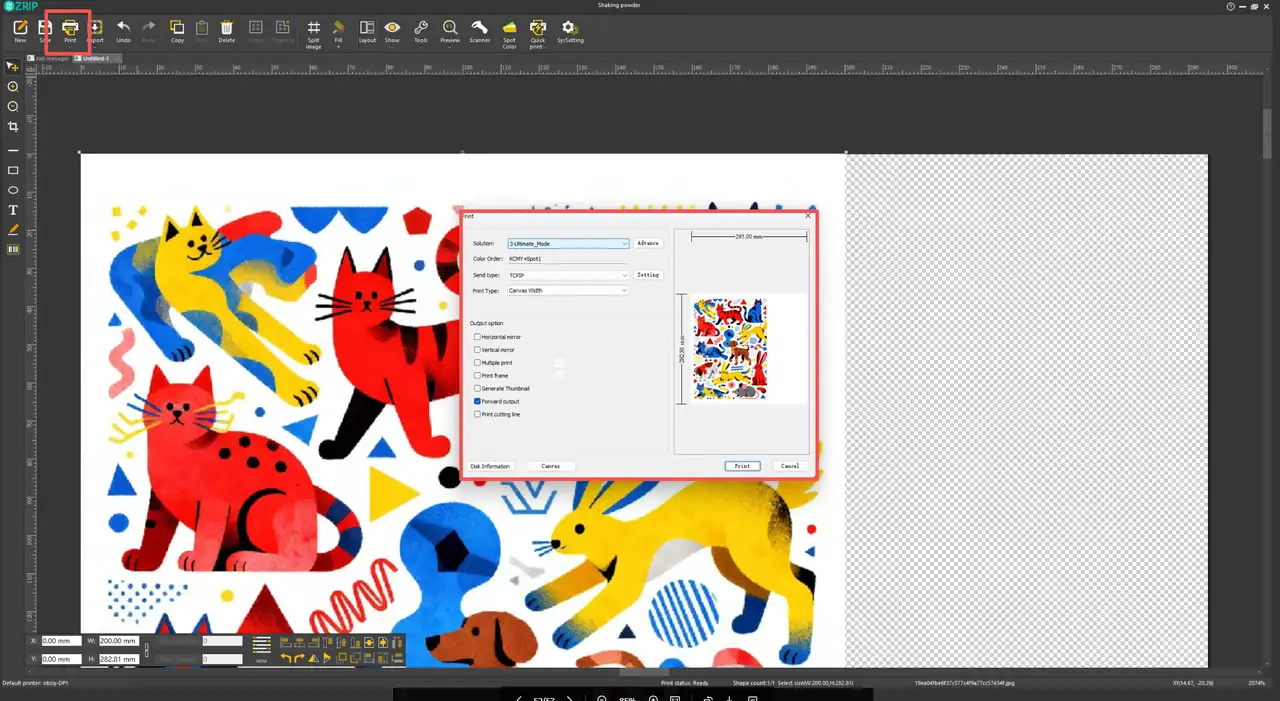
- Click the top-left Print button: select canvas width for print type, set TCPIP as connection mode, choose print mode based on your speed and print resolution requirements, then start printing.
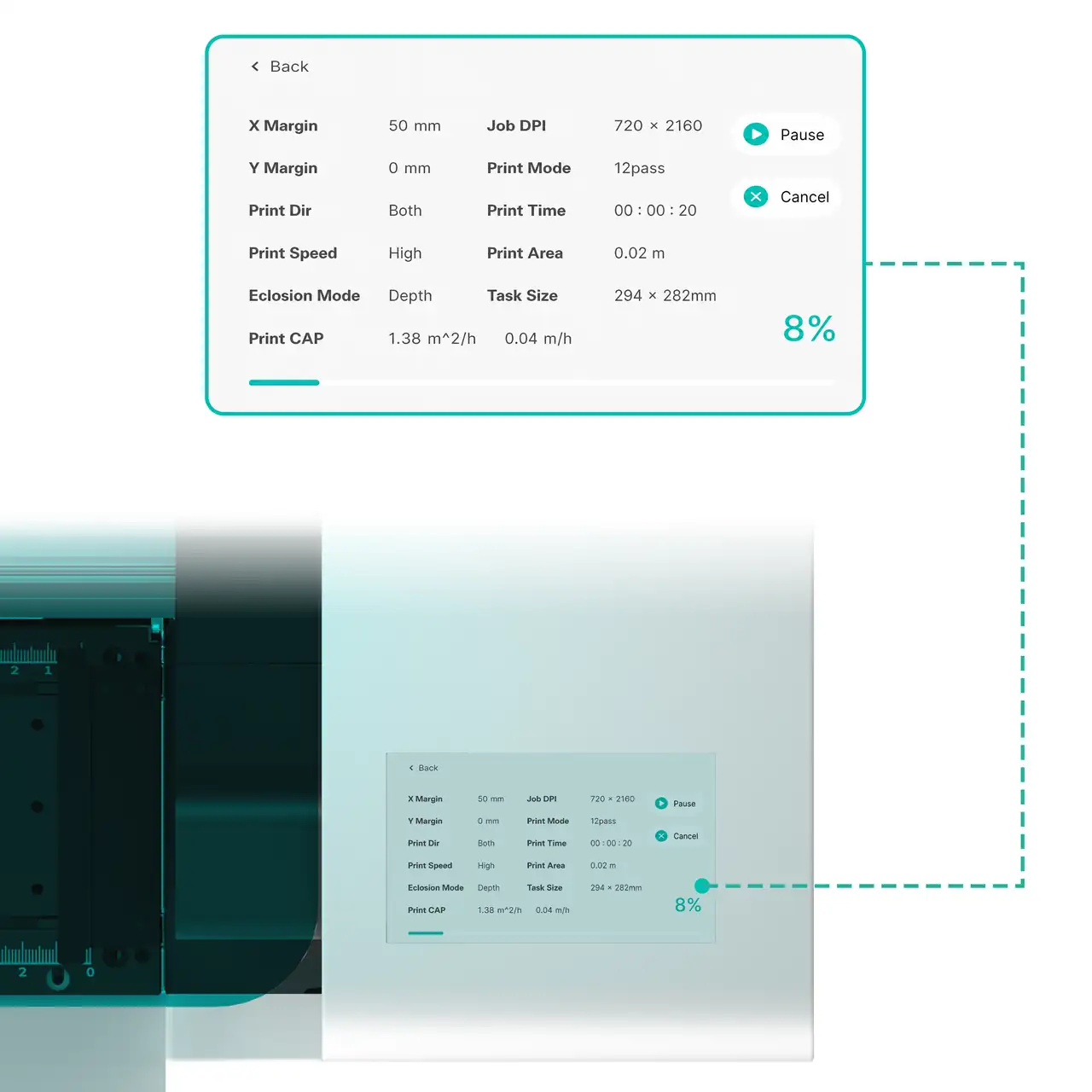
- While printing, view parameters such as print duration under Settings > Print.
You may also check print parameters by tapping the top-right corner on the printer touchscreen during printing.